Most people already have a routine somewhere: a sheet from a coach, a note on the fridge, a screenshot from another app, or scribbles in a notebook. Typing all of that in by hand is the boring part. So don't. Take a photo and let the AI build it for you.
How to scan a routine
- Go to the Train tab, open Routines, and tap Create.
- At the top you'll see "Scan from photo". Tap it.
- Either take a photo of your plan or pick a screenshot from your library. A coach's paper program, a whiteboard at the gym, a plan from another app, a photo of a notebook page: all fair game.
- The AI reads it and fills in the days, exercises, sets and reps for you.
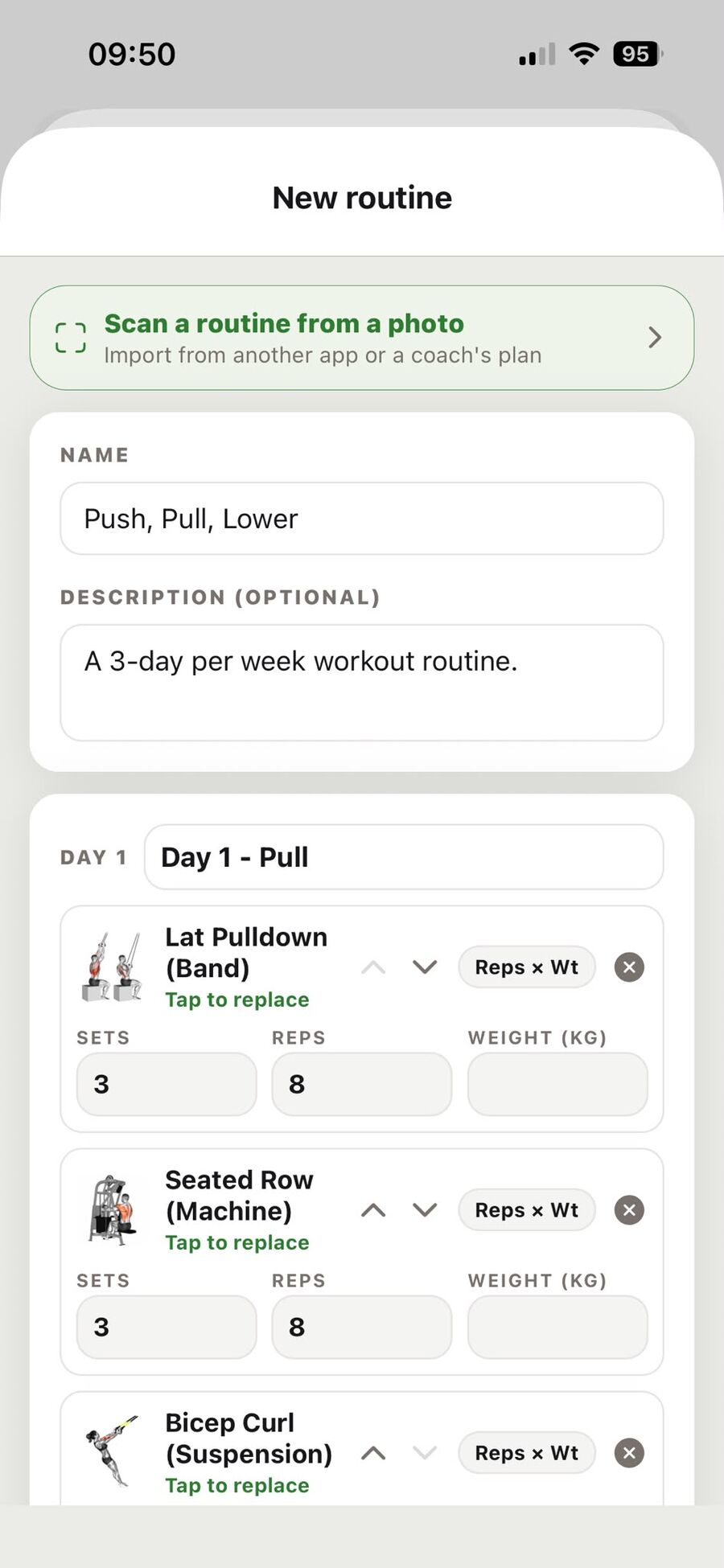
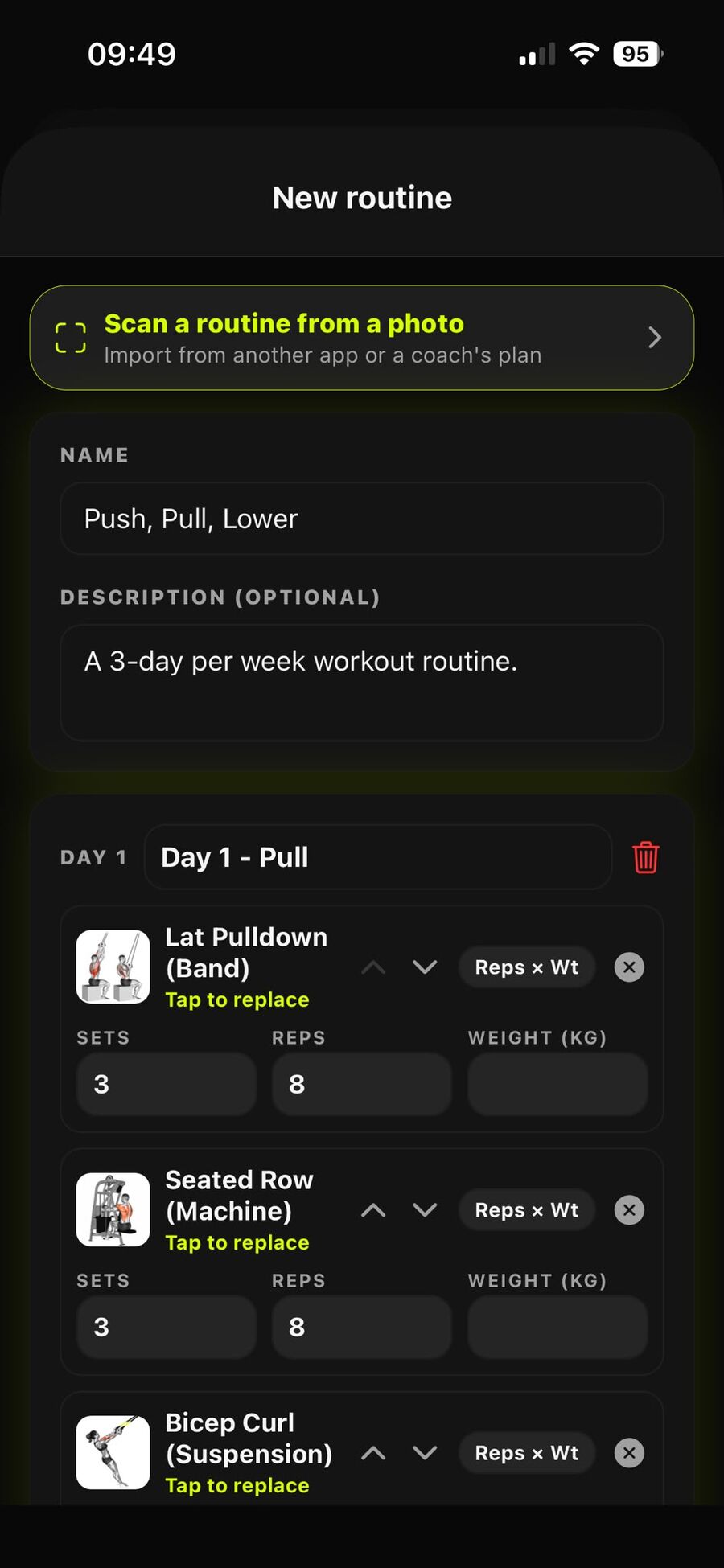
You stay in control
The scan doesn't just save blindly. It drops the parsed plan straight into the normal routine builder, so you can rename days, tweak sets, or reorder anything before saving.
If the AI reads an exercise name it can't match to our library, that row is flagged with a "tap to match" label. Just tap it, pick the right exercise (or remove it), and you're done. It won't let you save until every exercise is matched to a real movement, so your logging and progress tracking stay clean.
Why it beats typing it in
- A coach's plan becomes a routine you can start with one tap, with sets and reps prefilled every session.
- Switching apps? Screenshot your old program and bring it across in seconds.
- Paper plans stop living in a drawer and start tracking your progress.
Once it's in, it works like any routine: set it active, and the Home tab suggests the next day to train. Snap it once, train from it forever.
Rep N Prep
Track your workouts and nutrition in one app, with an AI coach that understands both.
Get the app